Tabbit Quick Start Guide
Quickly get to know Tabbit and understand what it can do for you
Home Search Box
One box to browse, search, chat, use Agent, and run Skills
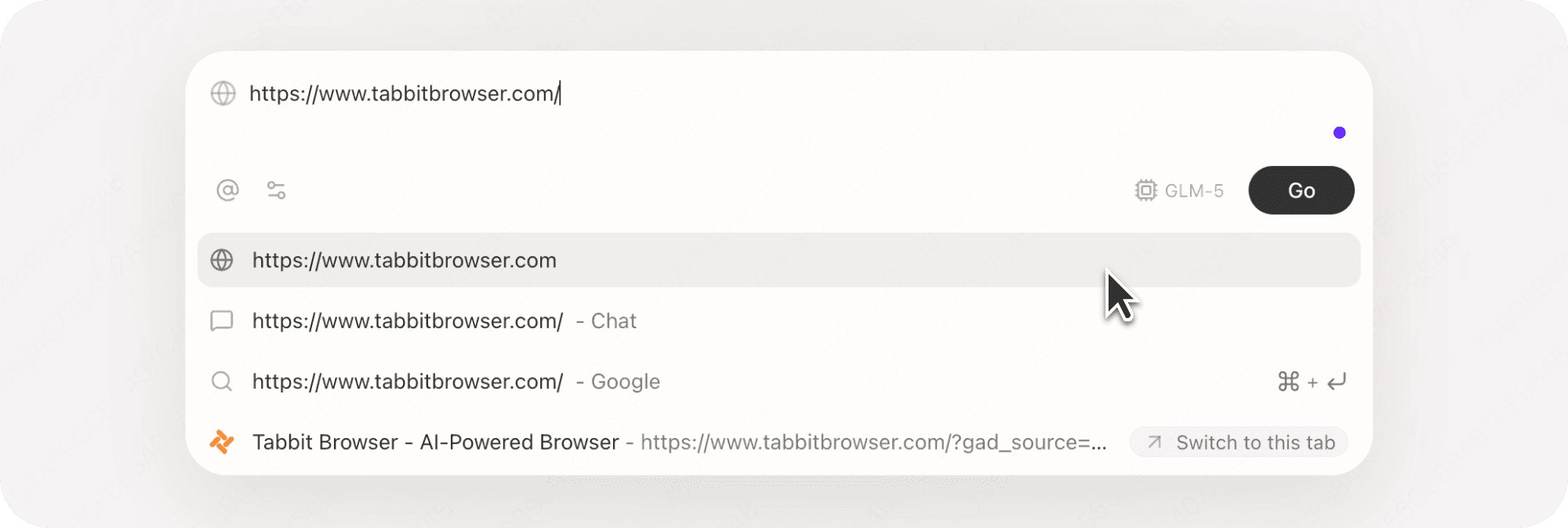
Browse:Enter a URL and press Enter to open the website.
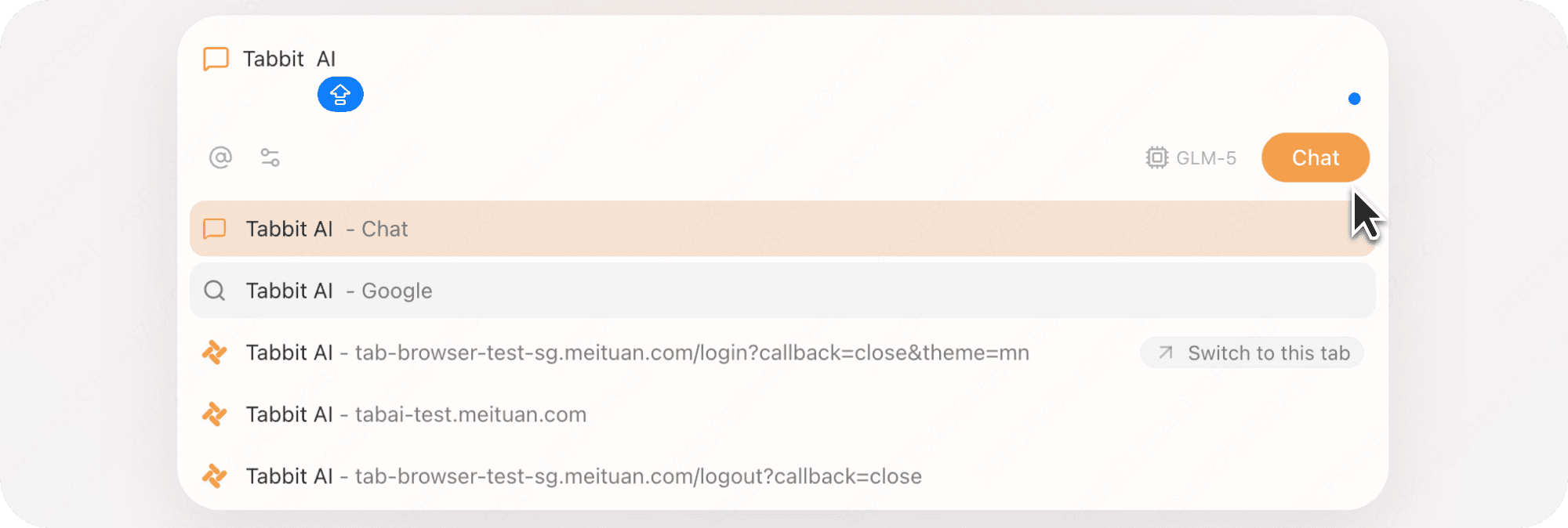
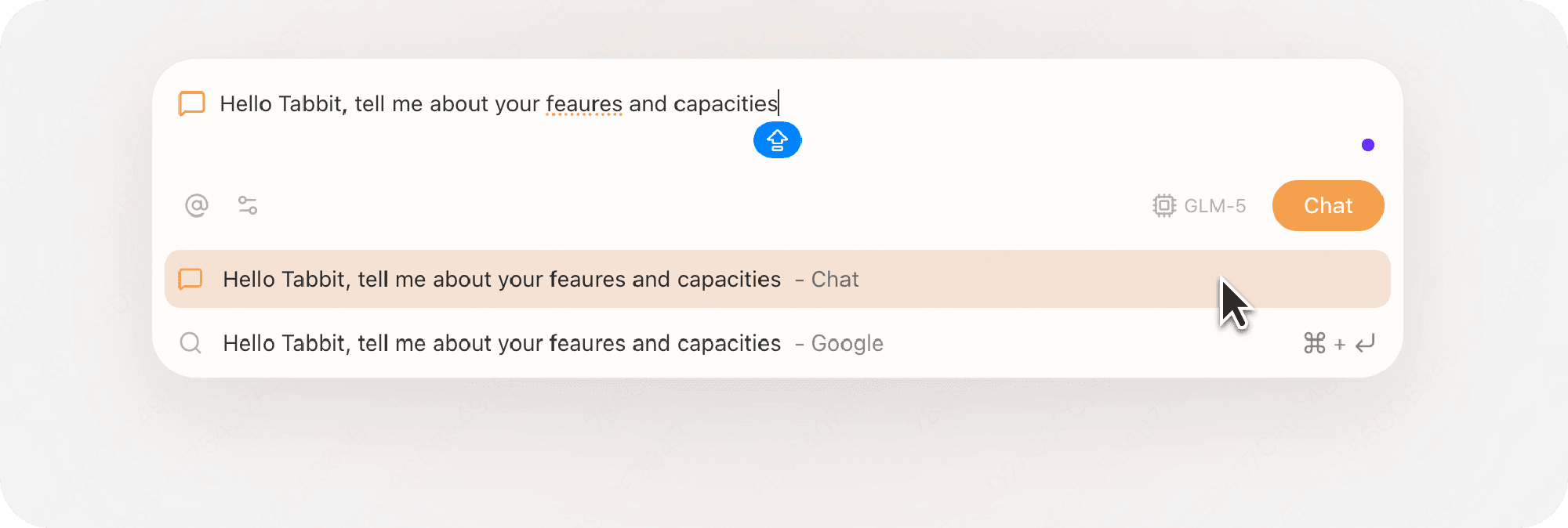
Chat:Tell Tabbit what you want to do, then click Chat or press Enter to chat.
Traditional Search:Enter keywords and select Search from the suggestions.
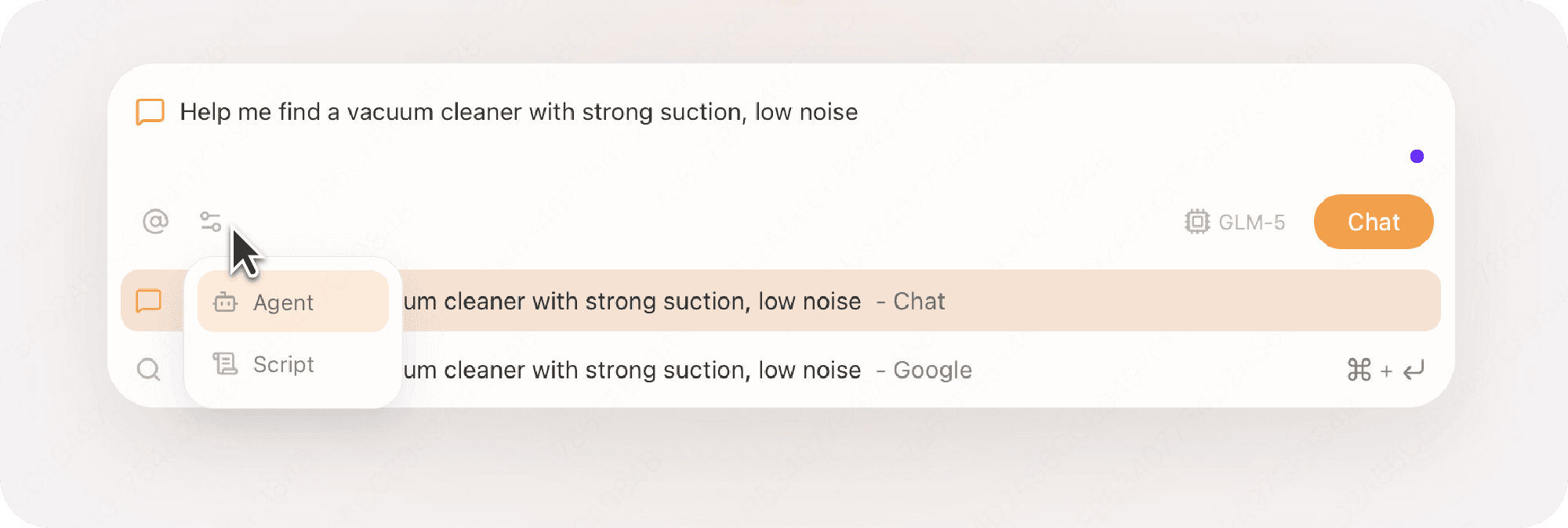
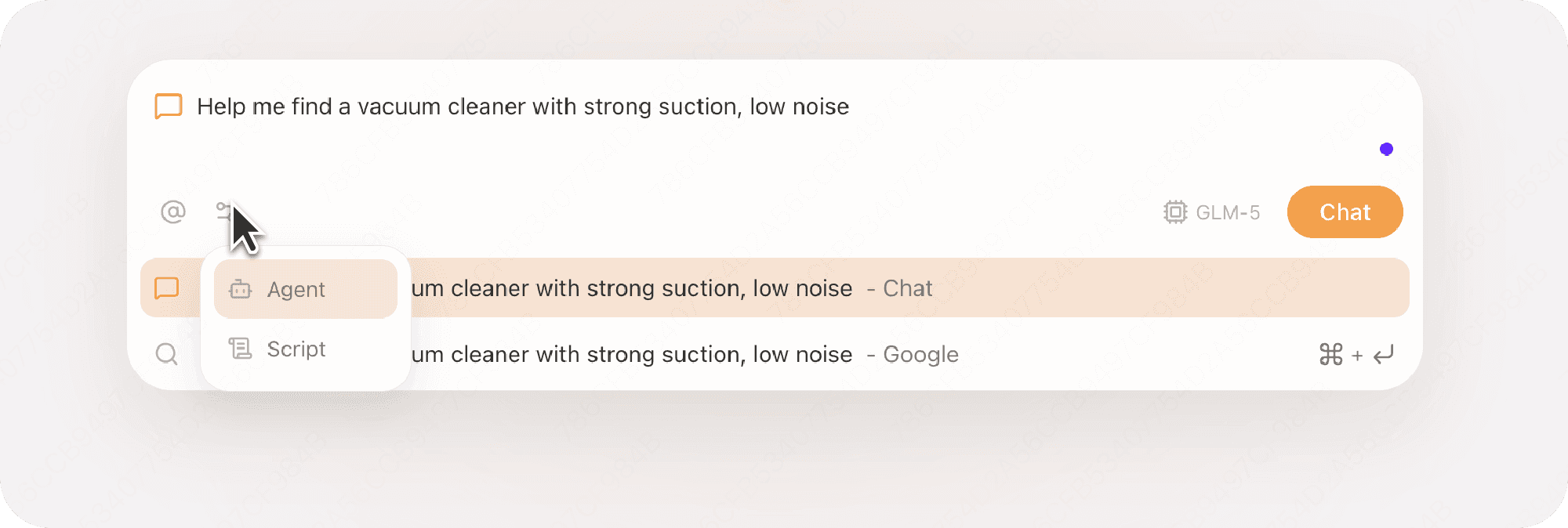
Agent:Select Agent in More Modes and describe your task. Tabbit will handle it for you.
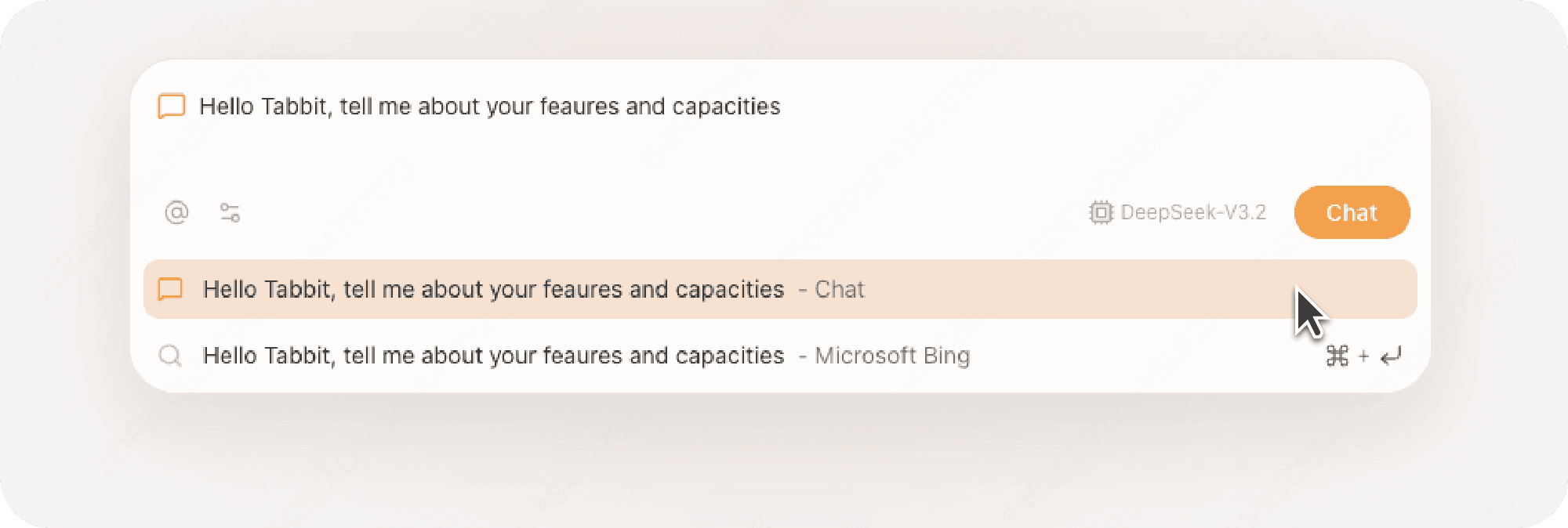
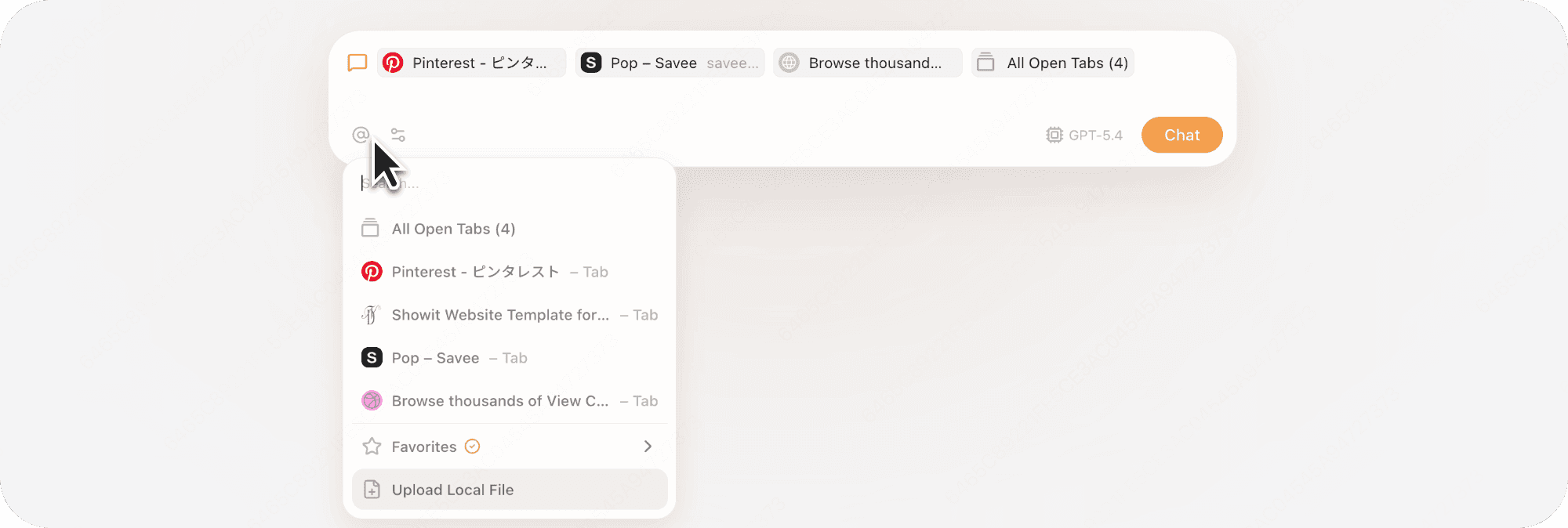
Reference context:Type @ to add tabs, tab groups, favorites, or local files as context.
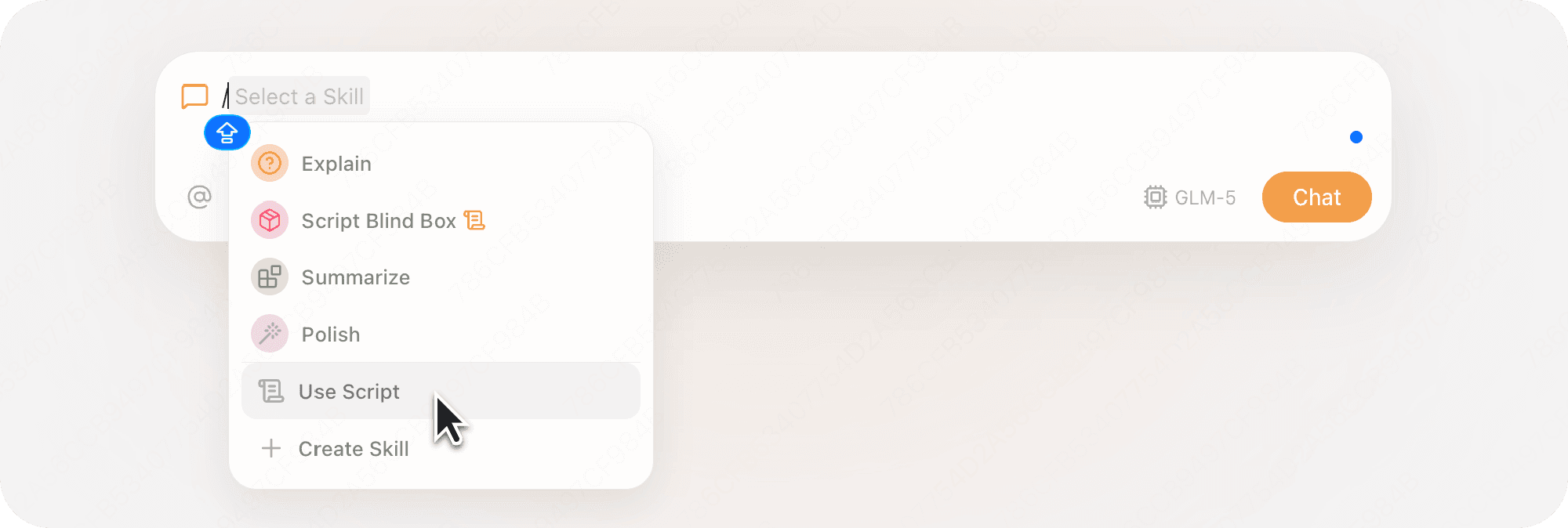
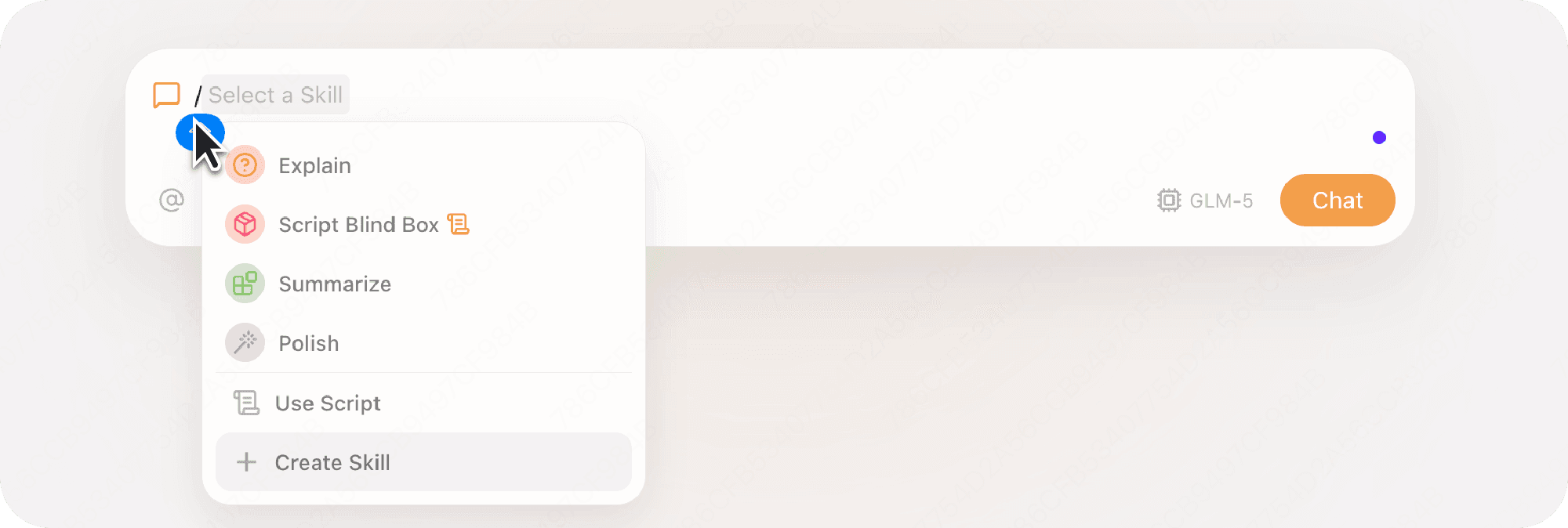
Use Skills:Type / to open the Skills menu and reuse a Skill.
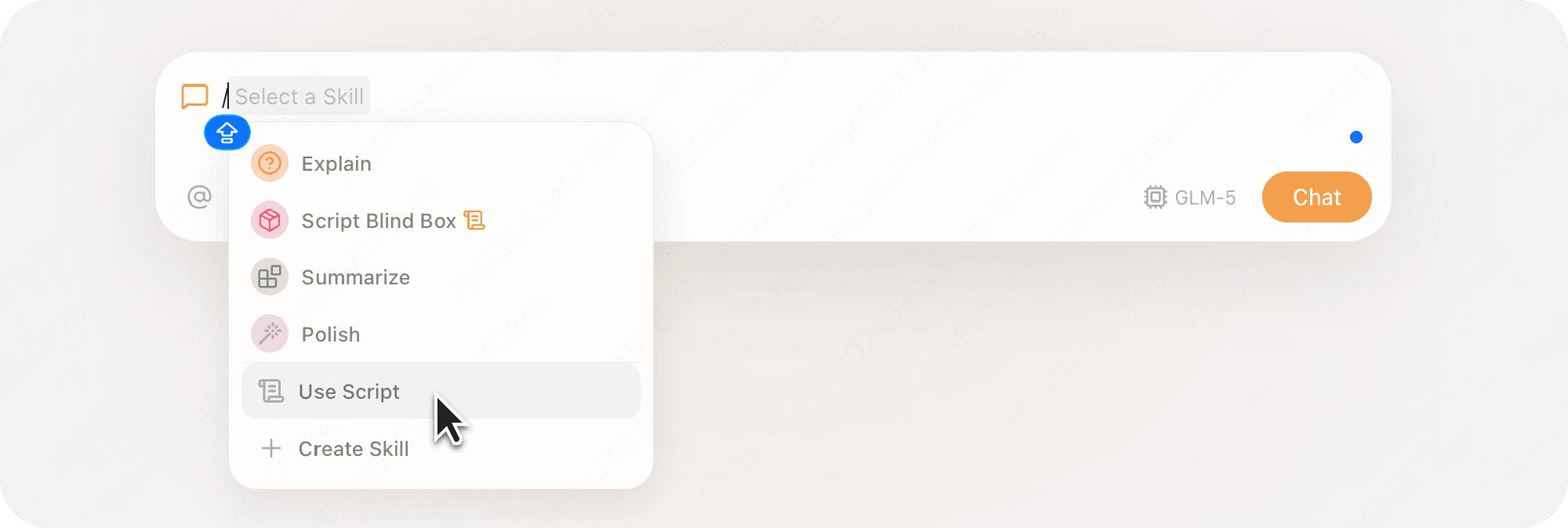
Use scripts:Type /, choose Use Script, and describe the changes you want.
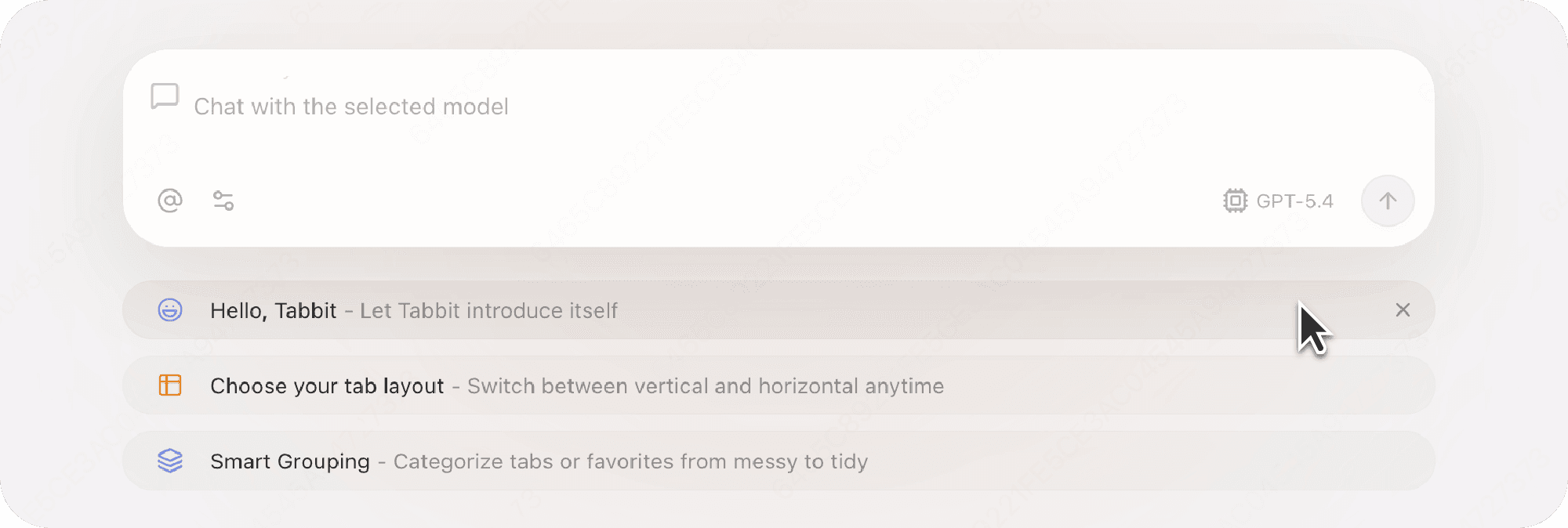
Suggestions:The Omnibox suggests options in real time based on your intent.
Chat
Bring up AI at any time and get precise answers with contextual awareness.
Omnibox:Open a new tab to ask a question or describe your request.
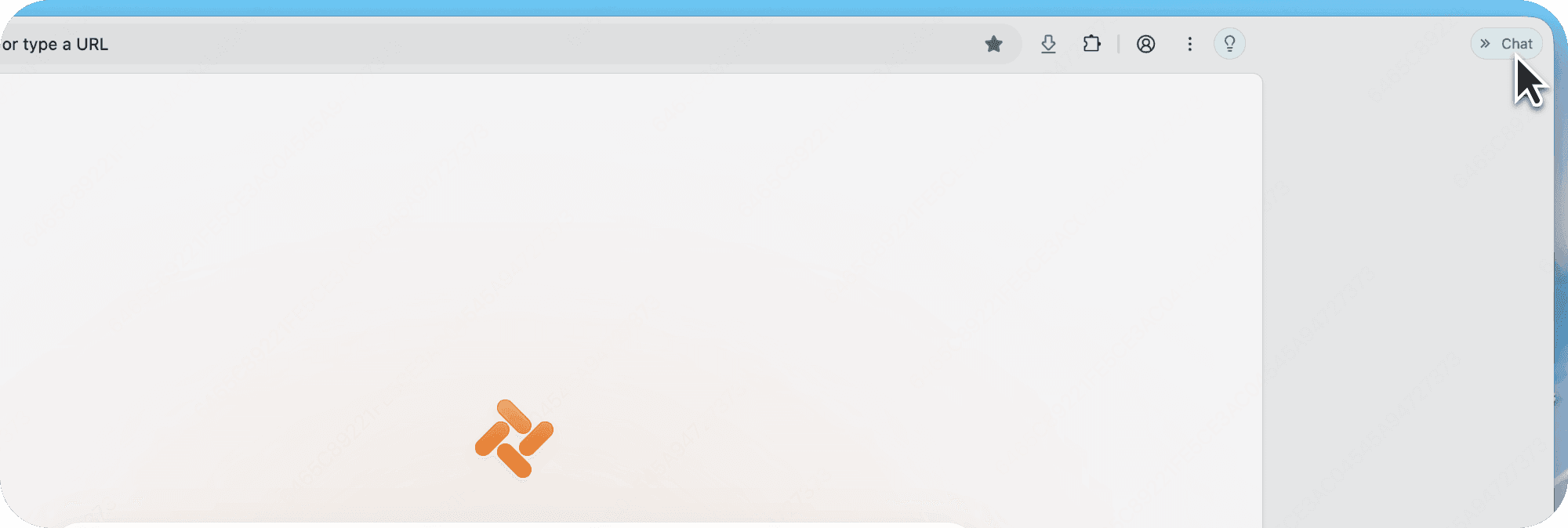
Sidebar:Click Chat in the upper-right corner to chat while viewing the current page.
Reference Context:Type @ to add tabs, tab groups, favorites, or local files as context.
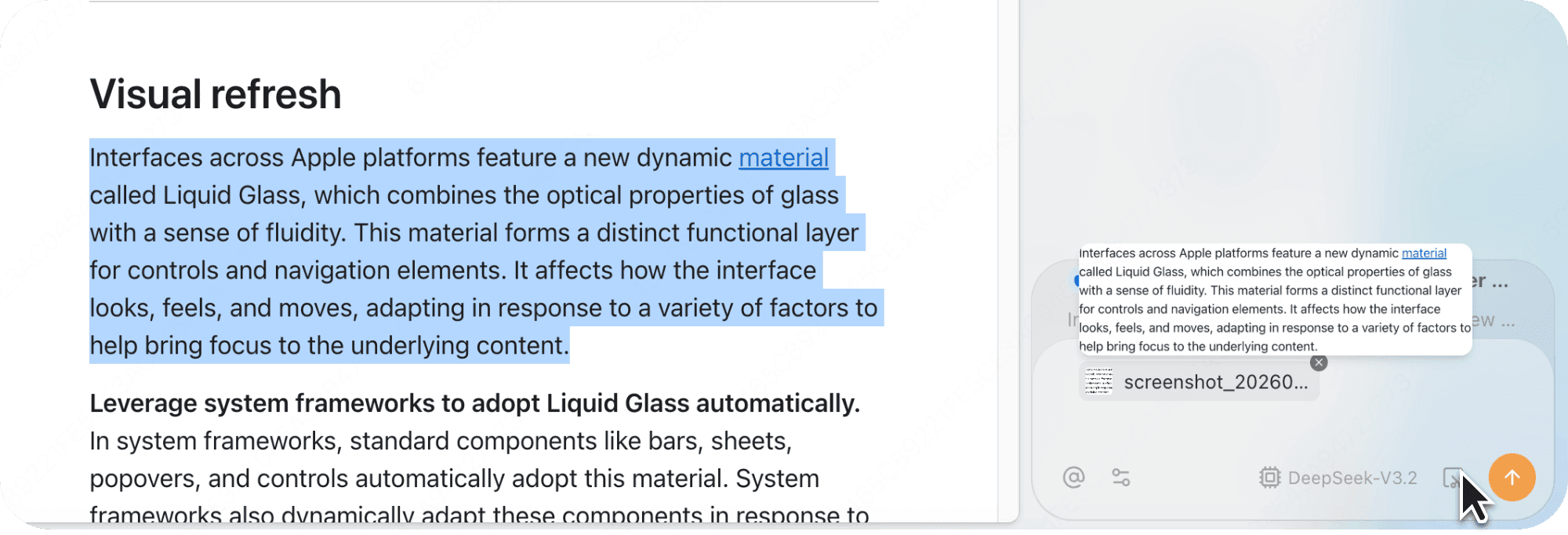
Context Attachment:Highlight text or use Screenshot to attach context directly.

Agent
Automate complex tasks without step-by-step manual operation.
Automation:Select Agent in More Modes and describe your task.
Use cases:Shopping: Tell Tabbit AI what you need, and it will find options for you. Academic research: Describe your topic to Tabbit AI, and it will research and generate a report.

Smart Tab Group
Eliminate tab clutter with one-click intelligent organization.
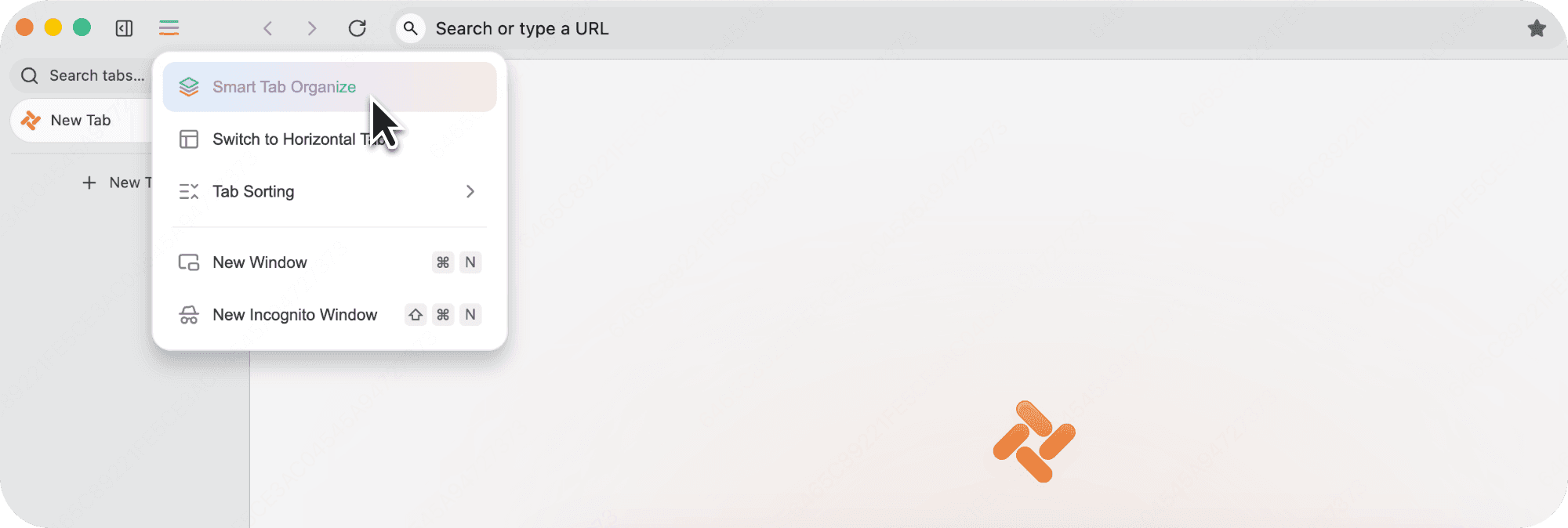
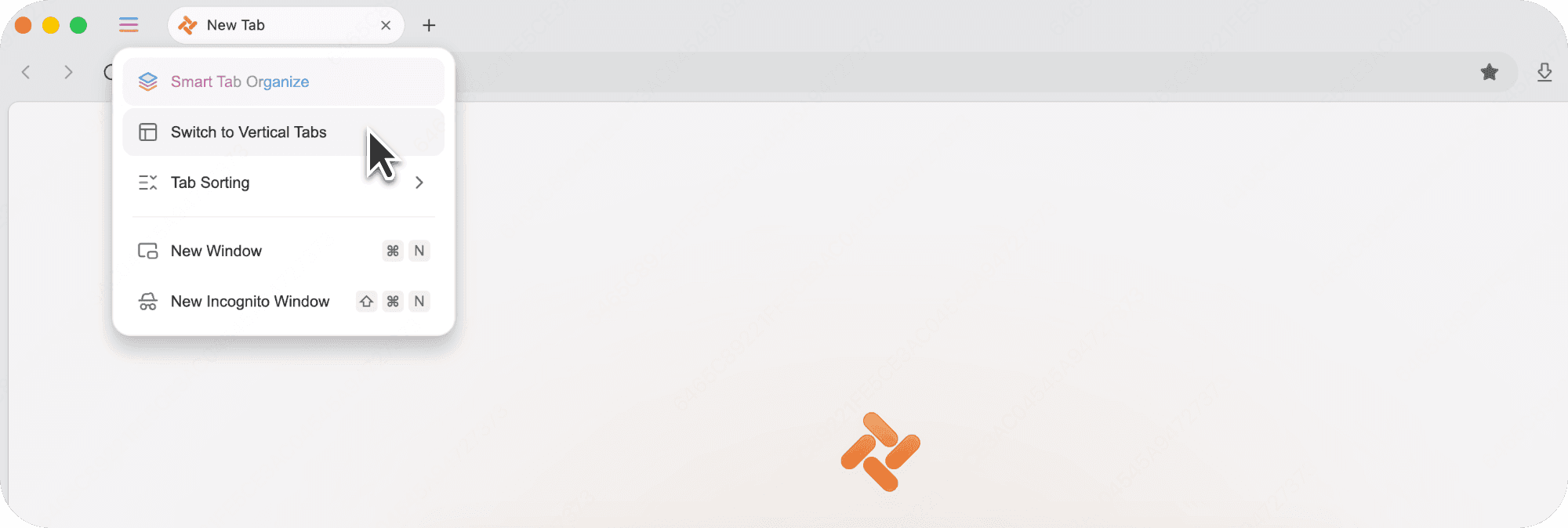
Smart Tab Organization:Click Smart Tab Organize to sort tabs with one click, or save the whole group directly.
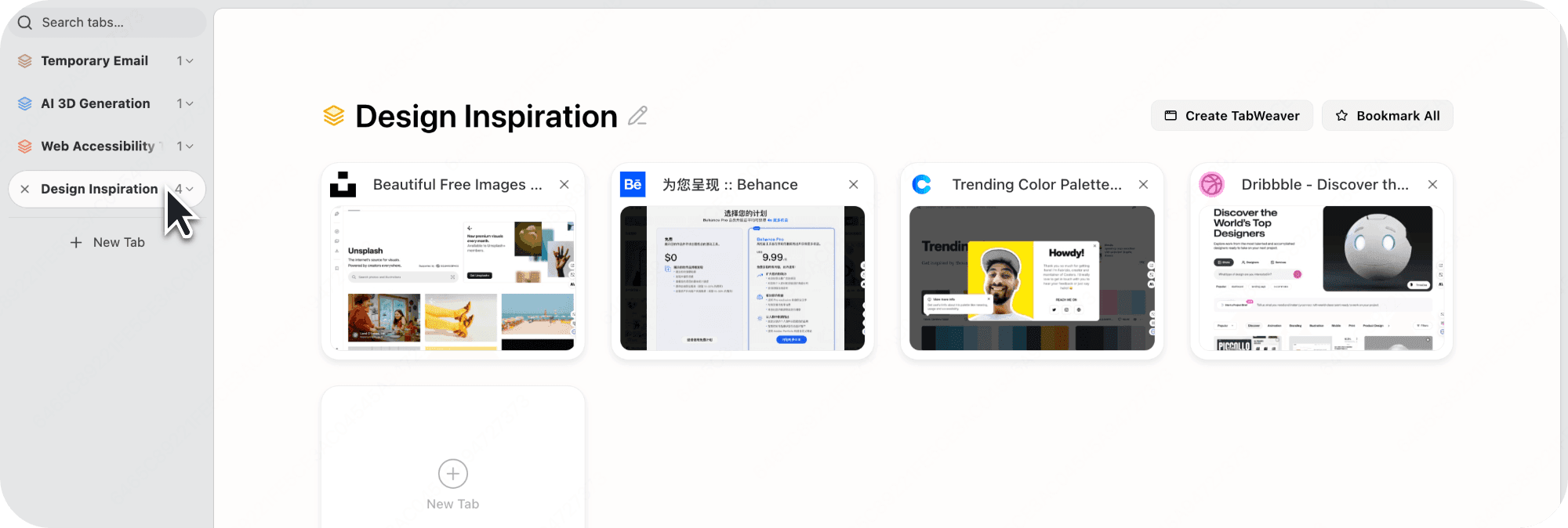
Vertical Tabs:Collapse vertical tabs for a cleaner layout and more space.
Tab Group:Manage tab groups, preview content, and chat with them as your knowledge base.
Favorites
Turn saved content into something you can actually use.
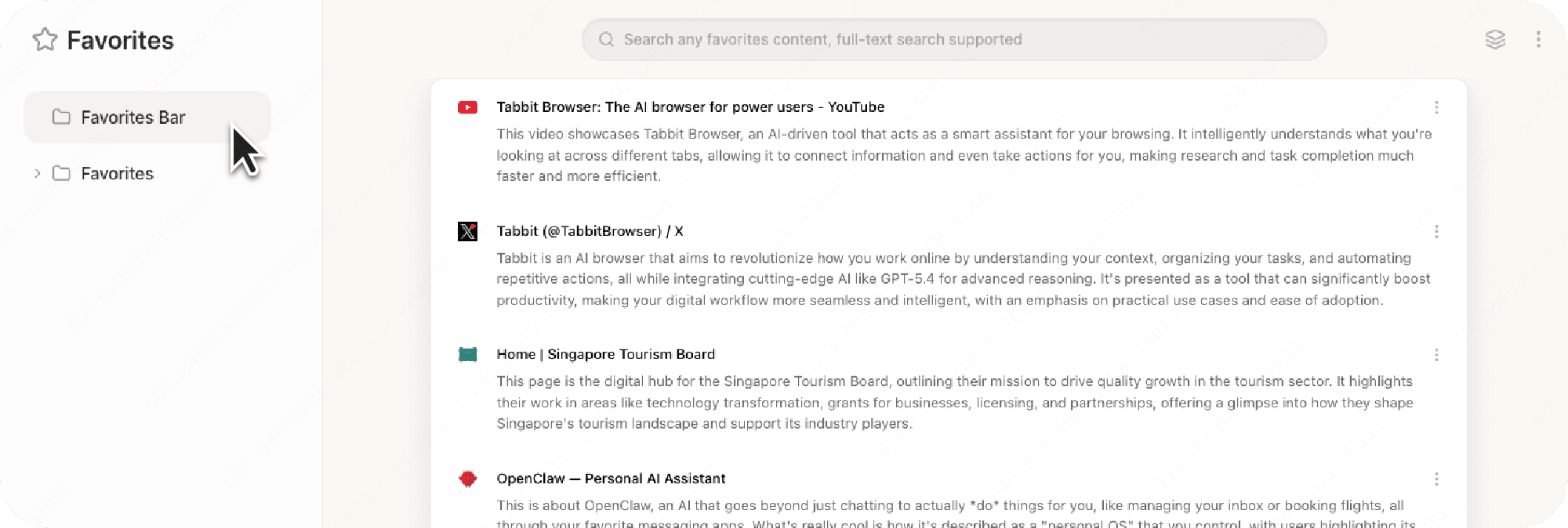
Full-page saving:Save full webpages, not just links.
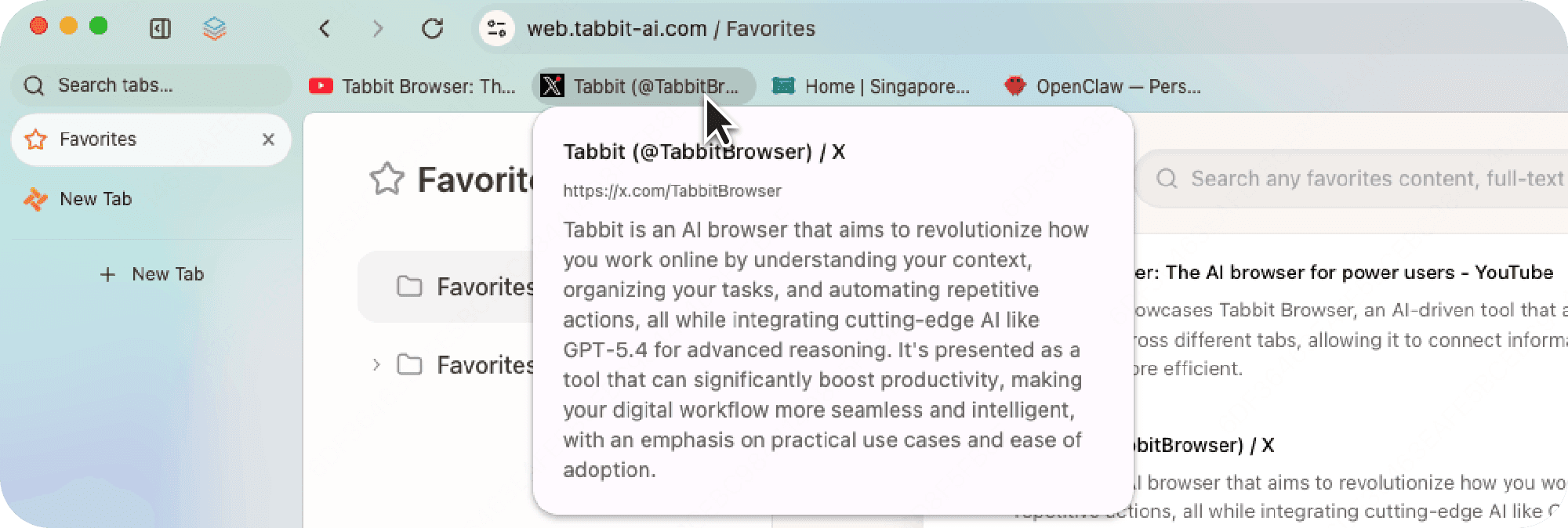
Smart Summary:Hover to preview summaries.
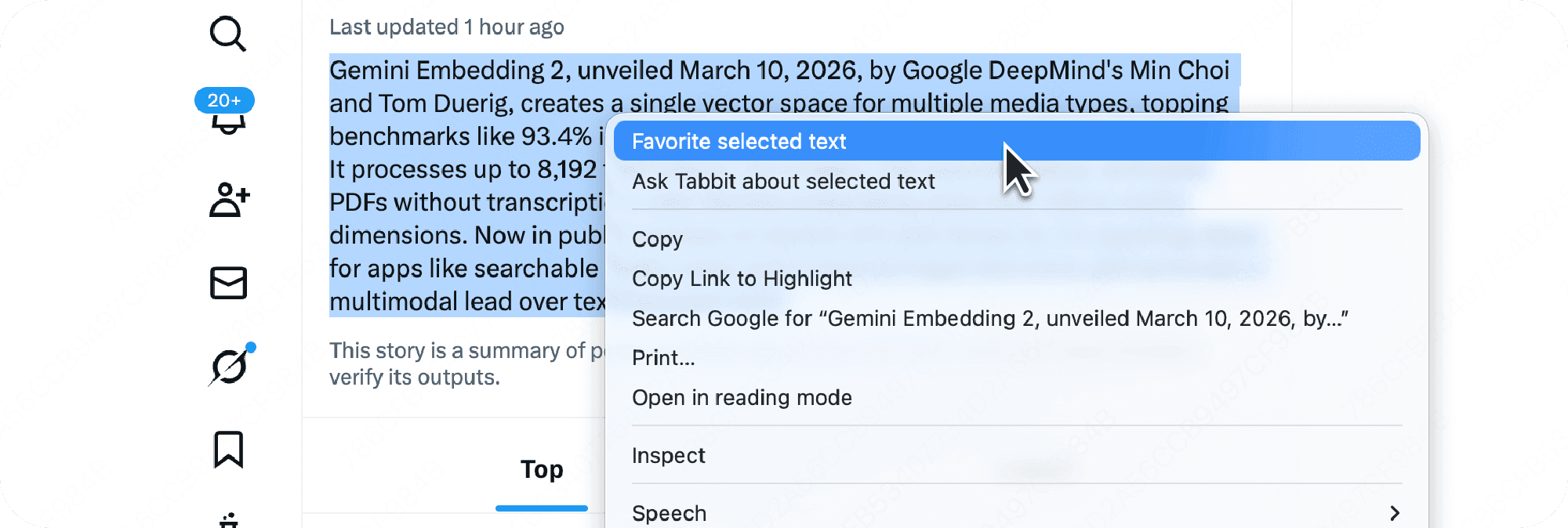
Use Favorites like notes:Save text and images with one right-click.
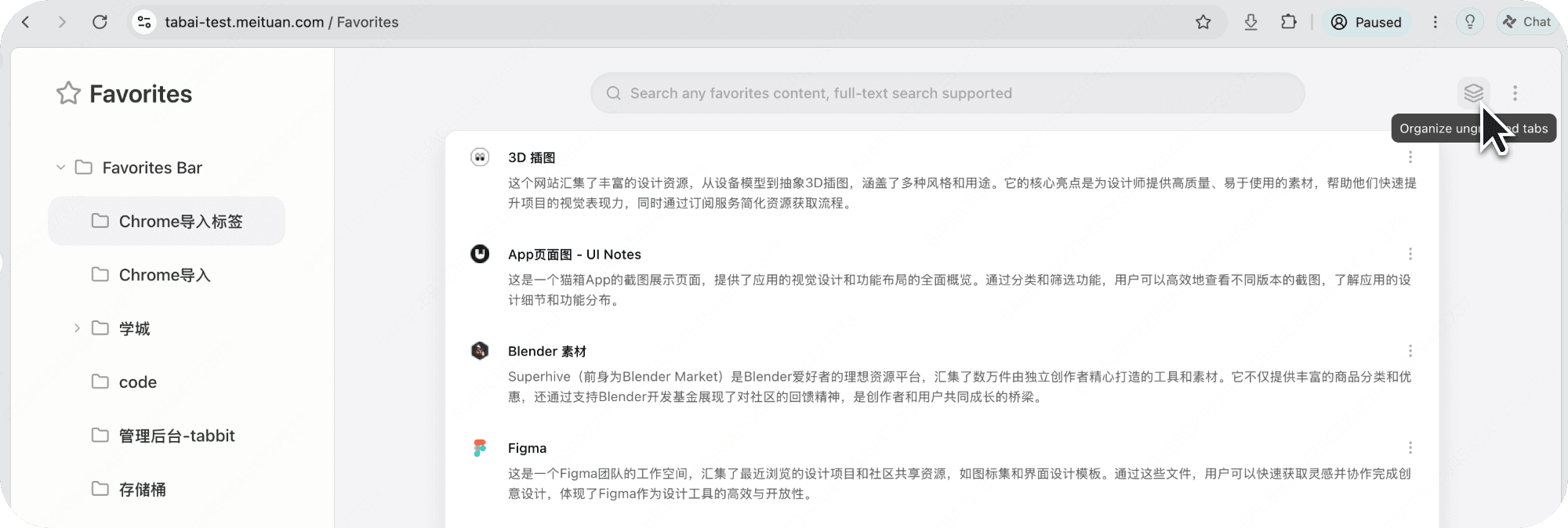
Organize folders:Organize ungrouped tabs from the Favorites page.
Skills
Create, save, reuse and share powerful workflows.
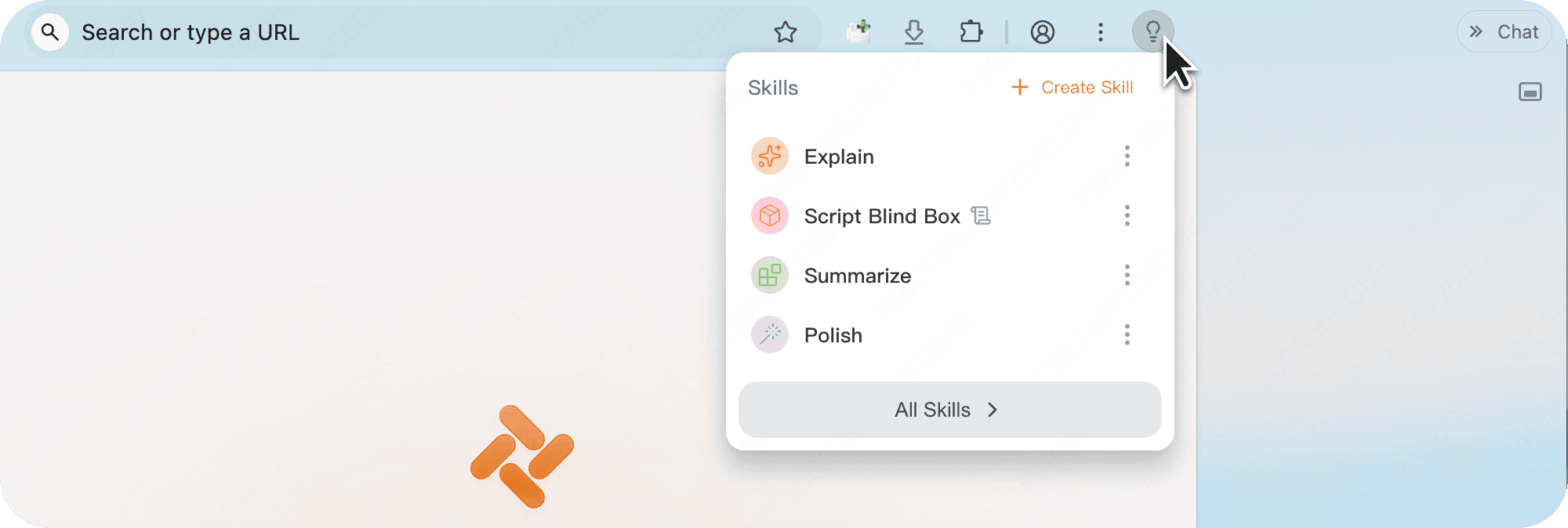
Create and use:Type / or click the light bulb icon in the upper-right corner to create a Skill.
Generate scripts:Type / and select Use Script, then describe your needs and click Run in the model's response.
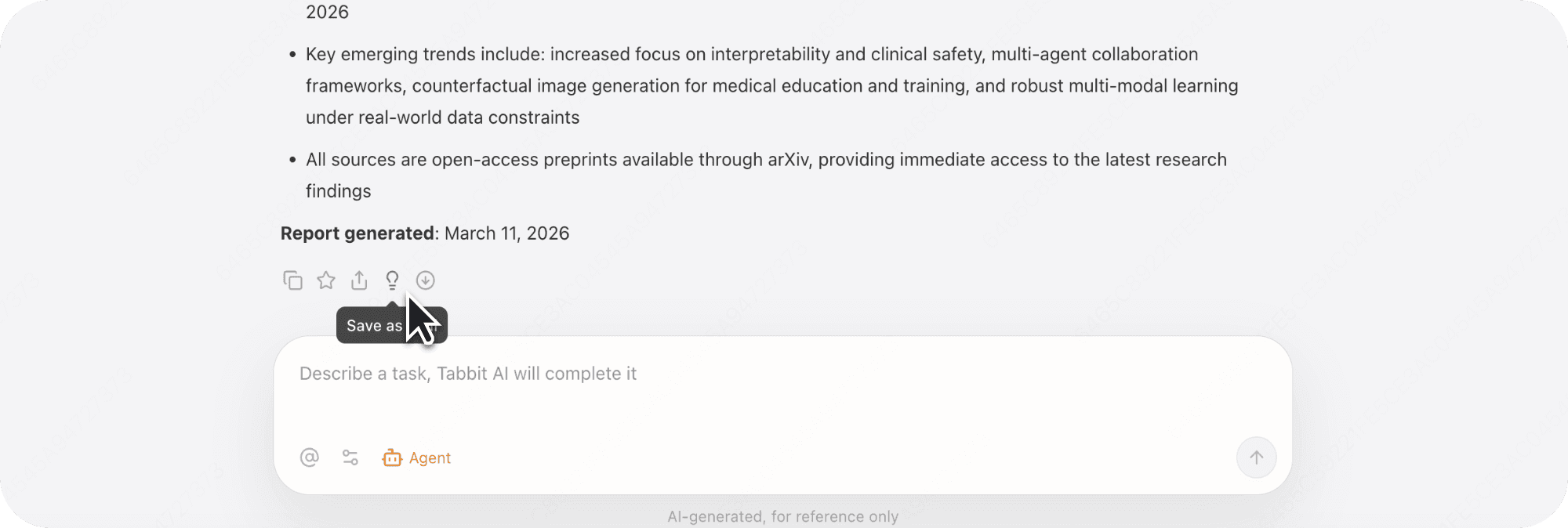
Save Agent workflows:Save completed Agent tasks as reusable Skills.